CyberArk
CyberArk CCP
The CyberArk Central Credential Provider (CCP) integration allows RADKit Service to retrieve device credentials directly from a CyberArk Vault. Depending on how the CyberArk Application ID is configured, CCP supports two authentication modes:
IP address whitelisting — CCP grants access based on the source IP address of the incoming request. No client certificate is required. The certificate fields (CA Certificate Chain, Certificate, Private Key) can be left empty.
Mutual TLS (certificate-based) — RADKit Service presents a client certificate to CCP during the TLS handshake. CCP verifies the certificate against the registered Application ID and grants access accordingly.
Both modes can be combined. Consult your CyberArk administrator to determine which authentication mode is enabled for your Application ID.
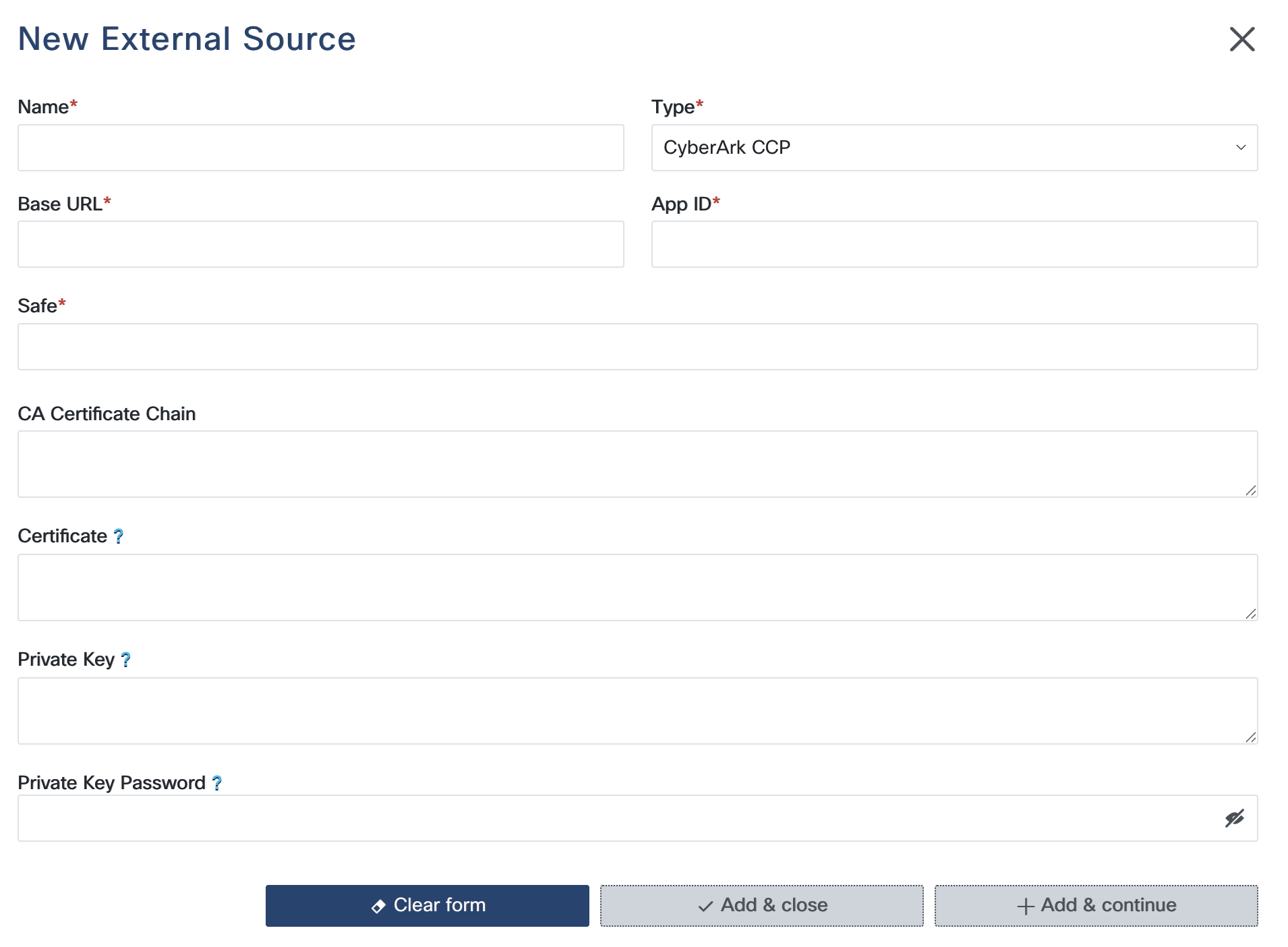
Configuration Steps
Base URL: Provide the base URL of your CyberArk CCP server. This is the primary endpoint for API interactions, for example
https://cyberark.example.com/. Ensure the URL is correct and reachable from your RADKit Service host.App ID: Enter the Application ID that has been registered in CyberArk and granted access to the required Safe. The App ID is used by CCP to determine which secrets the caller is authorized to retrieve.
Safe: Specify the name of the CyberArk Safe that contains the secrets RADKit should retrieve.
CA Certificate Chain (optional): Paste the PEM-encoded CA certificate chain that signed the CCP server’s TLS certificate. This is used by RADKit to verify the server’s identity. Leave empty if the server certificate is already trusted by the system trust store.
Certificate (optional): Paste the PEM-encoded client certificate that RADKit Service will present to CCP for mutual TLS authentication. Required only when certificate-based authentication is configured on the CyberArk Application ID.
Private Key (optional): Paste the PEM-encoded private key corresponding to the certificate above. The private key may optionally be encrypted with a passphrase (strongly recommended). Required only when a certificate is provided.
Private Key Password (optional): If the private key is protected by a passphrase, enter it here. Leave empty if the key is unencrypted.
Note
The private key passphrase is not stored by RADKit. Upon saving, RADKit uses the passphrase to decrypt the private key and then re-encrypts it using RADKit’s own internally generated encryption key. The passphrase is discarded immediately after this one-time operation and is never persisted.
Note
Ensure that the CyberArk Application ID is configured with the correct access rules (allowed machines, certificate subject, etc.) to permit RADKit Service to retrieve credentials from the specified Safe.
Usage
CCP returns a mapping containing both username and password for the matched
account. To populate the entire terminal block at once use !combine:
terminal: !combine
  - !external
    name: <name_of_external_source>
    use: <key_in_external_source>
    values:
      object: <account_address_in_cyberark>
To retrieve individual fields, use !external with an explicit use: parameter,
or !external-key (which infers the field name from the parent key automatically):
terminal:
  username: !external
    name: <name_of_external_source>
    use: <key_in_external_source>
    values:
      object: <account_address_in_cyberark>
  password: !external
    name: <name_of_external_source>
    use: <key_in_external_source>
    values:
      object: <account_address_in_cyberark>
The object value is matched against the address field of accounts stored in the
specified Safe.
CyberArk Conjur
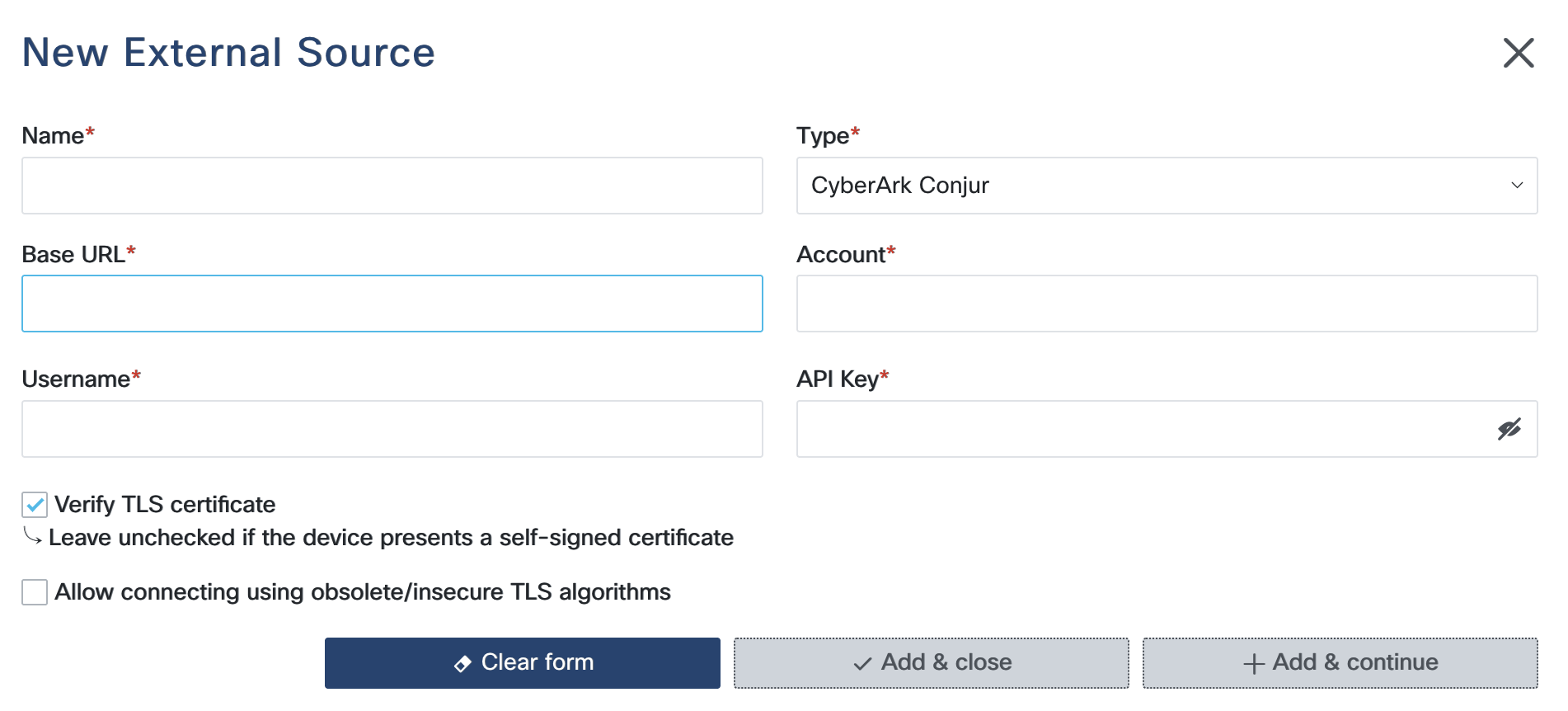
The CyberArk Conjur integration allows RADKit Service to retrieve secrets stored in a Conjur vault using API key authentication. This integration is compatible with both self-hosted CyberArk Conjur Open Source / Enterprise and hosted Conjur-compatible services.
Configuration Steps
Base URL: Provide the base URL of your Conjur server, for example
https://conjur.example.com/. The URL must be reachable from your RADKit Service host.Account: Enter the organization account name configured in Conjur. This is the Conjur account under which policies and secrets are stored, for example
myorg.Username: Enter the login name of the identity RADKit will authenticate as:
For a user identity, this is the user ID, for example
alice.For a host identity, prefix the host ID with
host/, for examplehost/my/namespace/host-id.
API Key: Enter the API key associated with the identity above. The API key is presented during initial host/user creation in Conjur, or can be reset by a Conjur administrator.
Verify TLS Certificate: Enable this option to verify the Conjur server’s TLS certificate chain. It is recommended to leave this enabled in production environments. Disable only if the server presents a self-signed certificate that is not in the system trust store.
Allow connecting using obsolete/insecure TLS algorithms: Enable this option only if the Conjur server requires support for legacy TLS ciphers. Use with caution.
Note
RADKit authenticates to Conjur once at connection time and caches retrieved secrets
for 60 seconds to reduce the number of API calls. Ensure the identity’s Conjur policy
grants execute permission on all variable paths that RADKit needs to read.
Usage
To retrieve a specific secret from CyberArk Conjur, reference the external source by
name in the device YAML configuration, providing the full variable path as the path
parameter:
terminal:
  password: !external
    name: <name_of_external_source>
    use: <key_in_conjur>
    values:
      path: <variable_path_in_conjur>
The path value corresponds to the full identifier of the variable as visible in the
Conjur policy, for example my/namespace/db-password.