Device Templates
Device templates allow sharing protocol configurations between devices and configuring protocols via YAML syntax. This enables advanced features like templating or using external sources for device authentication.
Templates can be found on the sidebar under Device Templates, which presents a table with
all created device templates. This view can be used to search, sort, create, update, or delete
device templates seamlessly, just like in other tables in the RADKit Service UI.
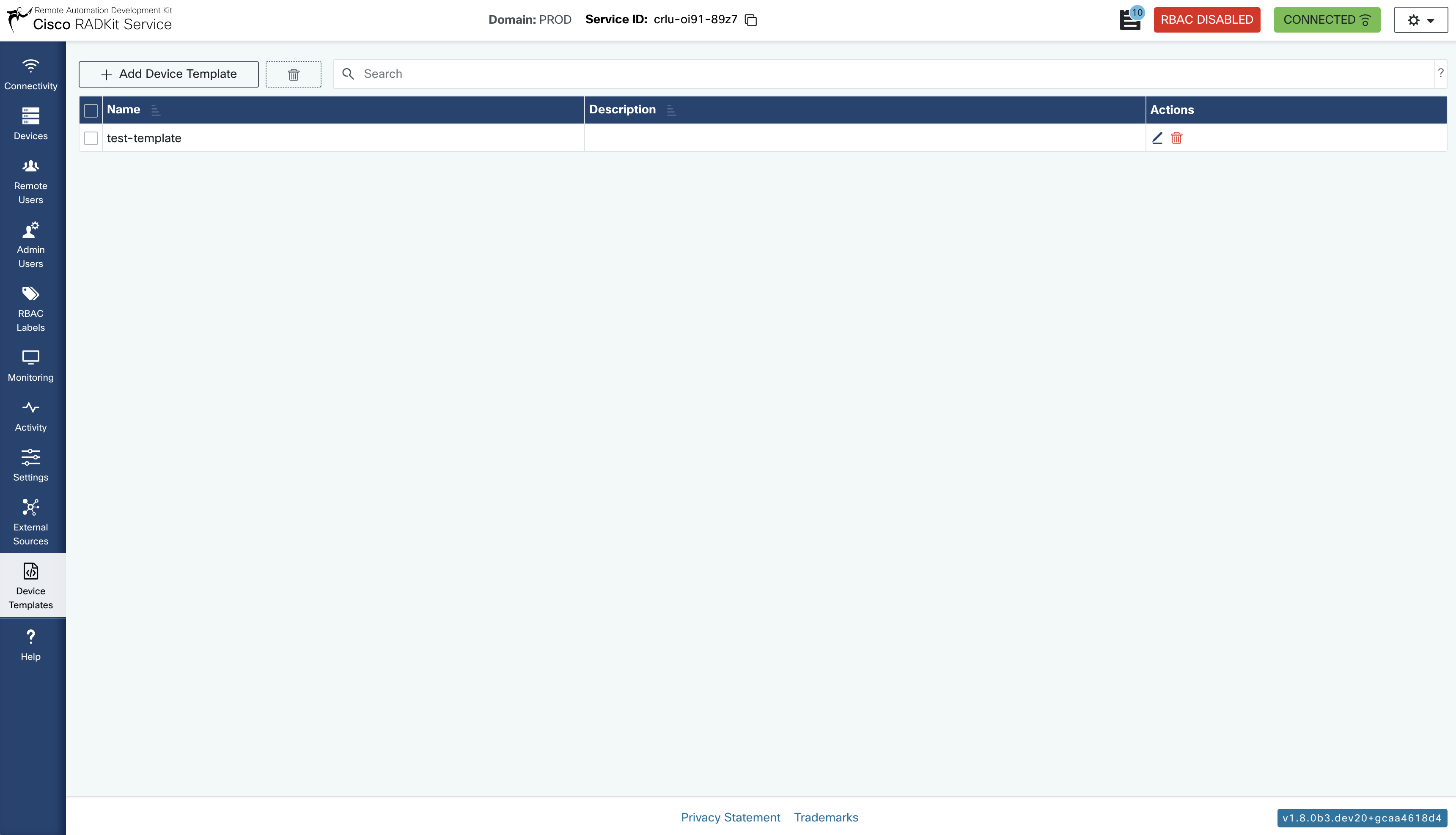
Device Template configuration consists of:
Template Name: A unique identifier for the template.
Description: An optional description.
The Device Templates feature allows users to define and manage protocol configurations for devices using the YAML language. This feature enables dynamic configuration of various communication protocols, such as:
http
swagger
snmp
terminal
netconf
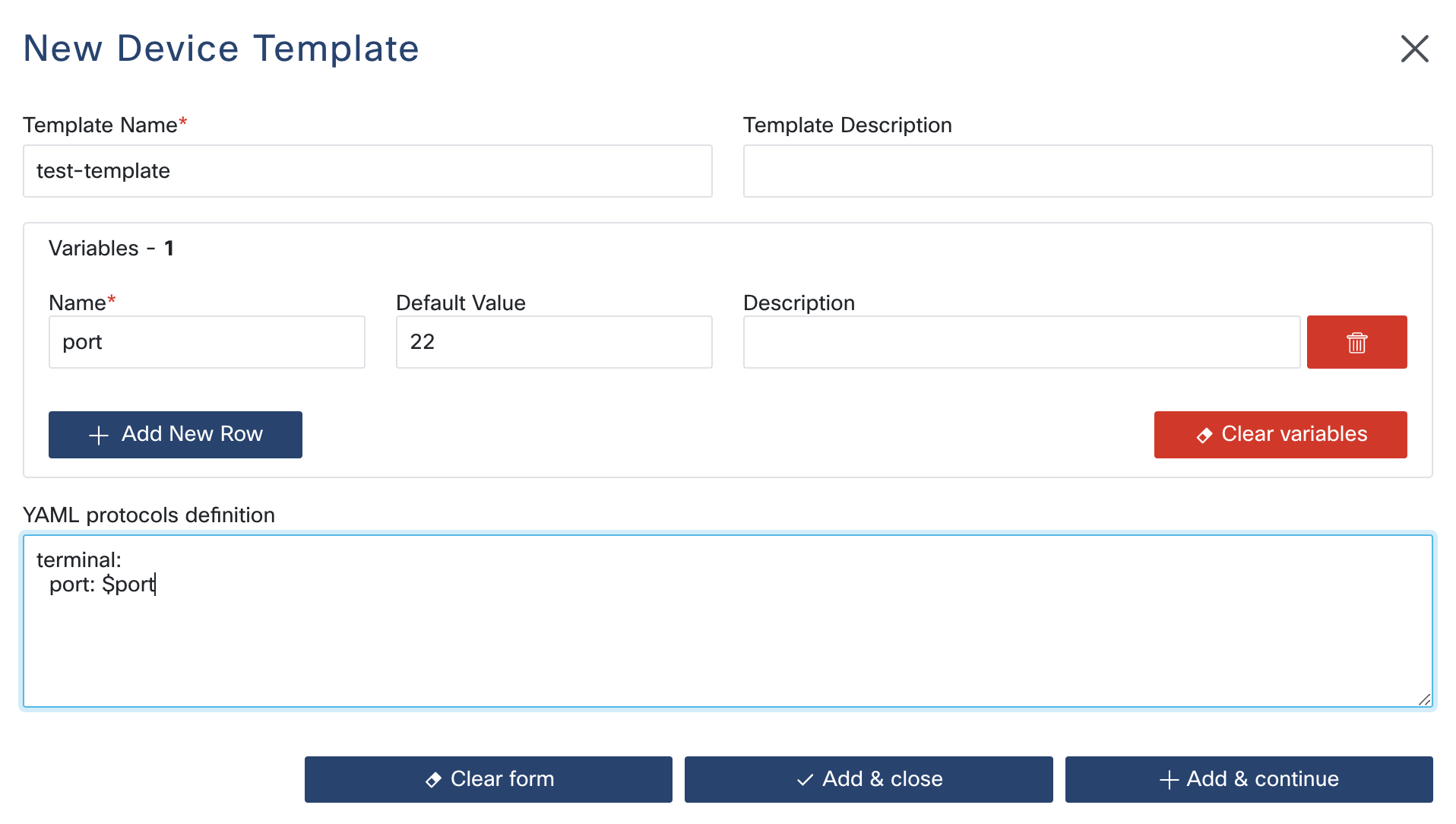
Templates are created through the webUI and require the following inputs:
name: The name of the template (required, string).
description: A description of the template (optional, string).
variableDefinitions: User-defined variables that can be referenced in the YAML configuration (optional).
protocolsDefinitionTemplate: The main configuration in YAML format that describes the protocols.
The system dynamically parses the YAML configuration before establishing a connection to the device.
—
Adding a New Device Template
To add a new Device Template, navigate to Device Templates in the sidebar and then
click Add Device Template.
—
Default Variables
Three built-in variables are always available in every template and do not need to be declared:
device_name (string): The name of the device being connected to.
username (string): The name of the user attempting to connect to the device.
request_source (string): The source of the connection request to the RADKit Service. Possible values include: - cloud/{client_id} - asgi/username - direct/address:port - in_memory
These variables are automatically available within the YAML configuration and do not require explicit definition.
—
Complete YAML Example with Defaults
http:
  authentication_extra: null
  password: null
  port: 443
  protocol: HTTPS
  use_insecure_algorithms: false
  username: null
  verify: true
netconf:
  password: null
  port: 830
  use_insecure_algorithms: false
  username: null
snmp:
  community_string: null
  port: 161
  version: 2
swagger:
  password: null
  port: 443
  schema_path: ''
  use_insecure_algorithms: false
  username: null
  verify: true
terminal:
  capabilities:
  - UPLOAD
  - EXEC
  - INTERACTIVE
  - DOWNLOAD
  connection_method: SSH
  enable_password: null
  jumphost: false
  password: null
  port: 22
  private_key: null
  provisioning_variant: DEFAULT
  use_insecure_algorithms: false
  use_tunneling_if_jumphost: true
  username: null
Example Of Adding A New Template
This example demonstrates the required inputs and the use of YAML tags (!var,
!concat, !combine, !external and !external-key).
Template Inputs
name:
MyDeviceTemplatevariableDefinitions: -
custom_port(default:22)
YAML Configuration (protocolsDefinitionTemplate)
http:
  username: !var username
  password: !external-key static_credentials
  port: 443
  verify: true

terminal: !combine
  - username: !concat
      - admin
      - _ssh
  - password: !external
      name: cyberark
      use: password
  - connection_method: SSH
  - port: !var custom_port

swagger: !combine
  - username: !var username
  - password: !var another_external_source
  - verify: false
Explanation Of The Configuration
HTTP Configuration: - The
usernameis dynamically resolved using the!vartag. - Thepasswordis retrieved from the external sourcestatic_credentialsusing the!external-keytag. - Theportis explicitly set to443.Terminal Configuration: - Combines fields using the
!combinetag. - Theusernameis dynamically built using the!concattag to combineadminand_sshinto a single string (admin_ssh). - Thepasswordis retrieved from the external sourcecyberarkusing the!externaltag with theuseparameter. - Theconnection_methodis explicitly set toSSH. - Theportdynamically uses thecustom_portvariable with a default value of22.Swagger Configuration: - Combines fields using the
!combinetag. - Theusernameis dynamically resolved using the!vartag. - Thepasswordis retrieved from an external source (another_external_source) using the!vartag.
Using Device Templates in Devices
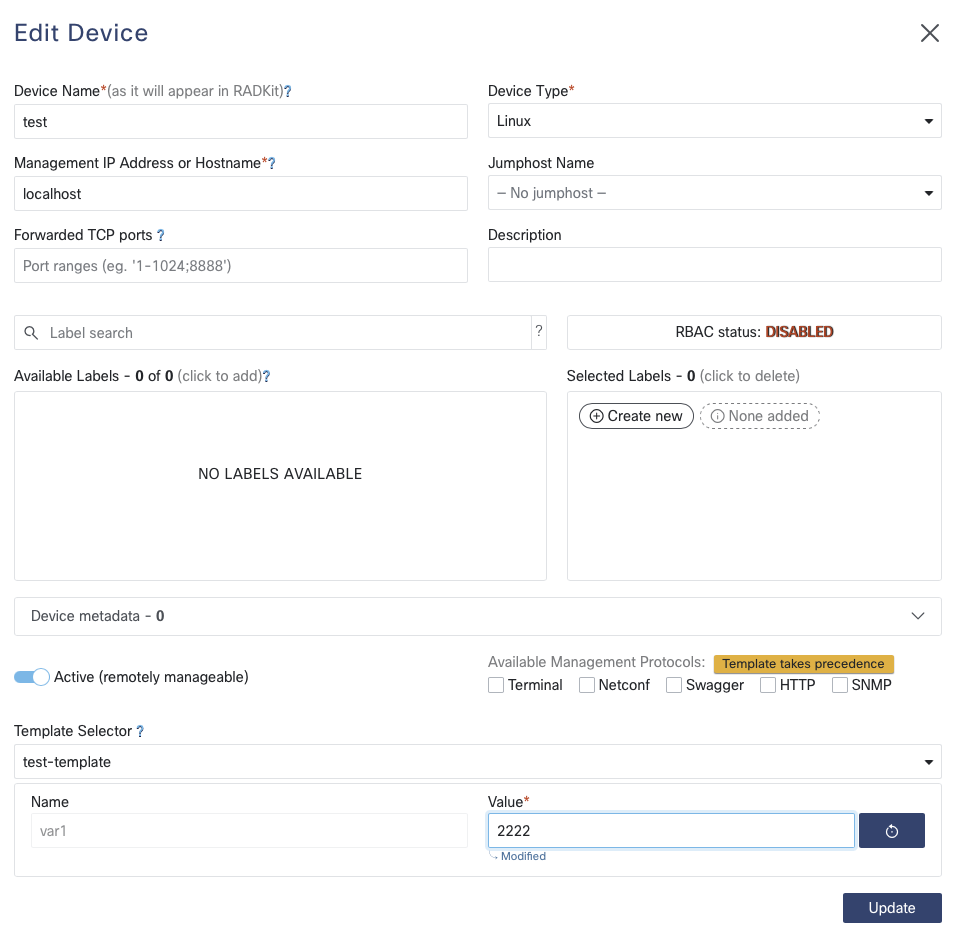
To use a device template in a device, open the device edit modal, select the desired
template in the Template Selector, and provide all the mandatory and/or optional
variable values.
Or use Bulk Edit if you want to modify more than a single device.
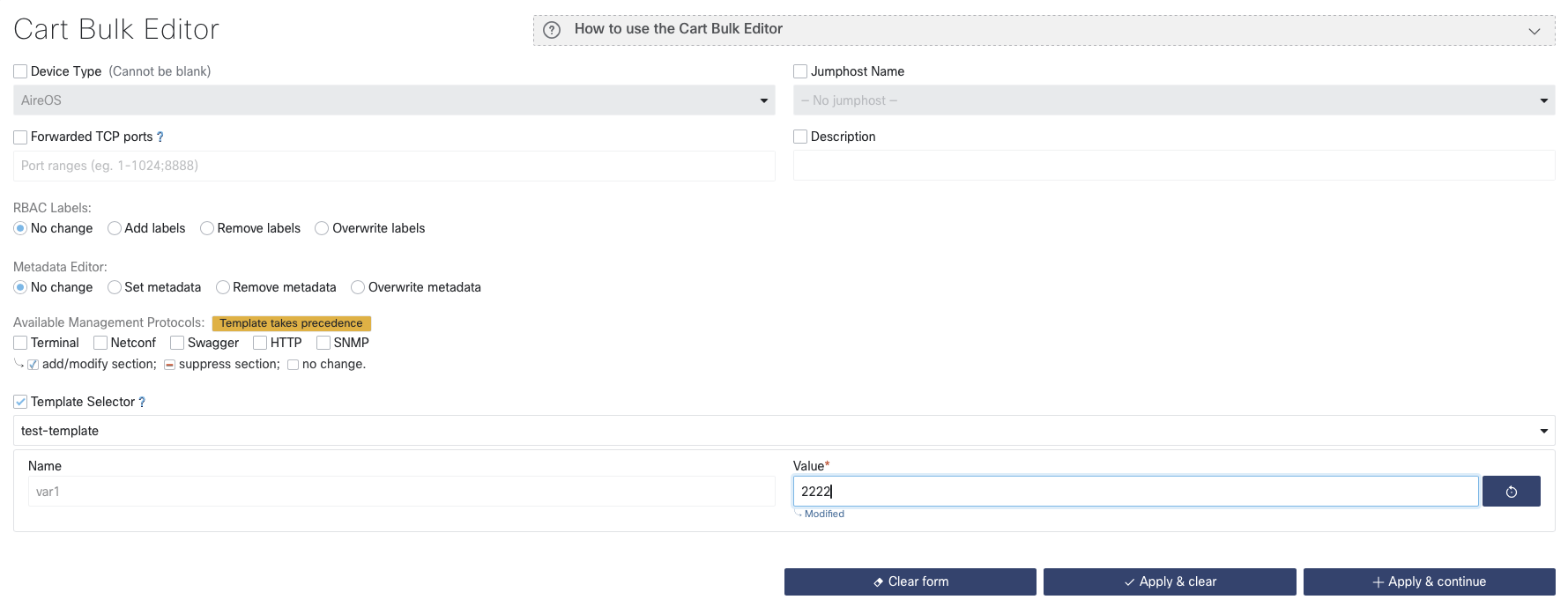
Selecting a template in the Template Selector changes this value for all the devices
added to the cart. If no template is selected, the device template selection will be
removed from all the devices. If a template is selected, it will add or override the
template selection in every device in the cart.
Note
When a Device Template is selected, it takes precedence over other protocol configurations.